
Recurring appointments help streamline scheduling for regular meetings, consultations, classes, and check-ins. With Cal ID, you can create recurring appointments that automatically repeat on a daily, weekly, or monthly basis, saving time and reducing manual scheduling work.

Using the Recurring feature, you can create a sequence of meetings that occur automatically according to your chosen schedule, giving attendees the option to subscribe to the full series.
Let's learn how to create recurring appointments with Cal ID.
Before you begin: Make sure you're logged in to your Cal ID account and have an active event type ready to configure.
Steps to Create Recurring Appointments:
1. Open Event Types
Log in to Cal ID → Navigate to Event Types from the left-hand menu on your dashboard.
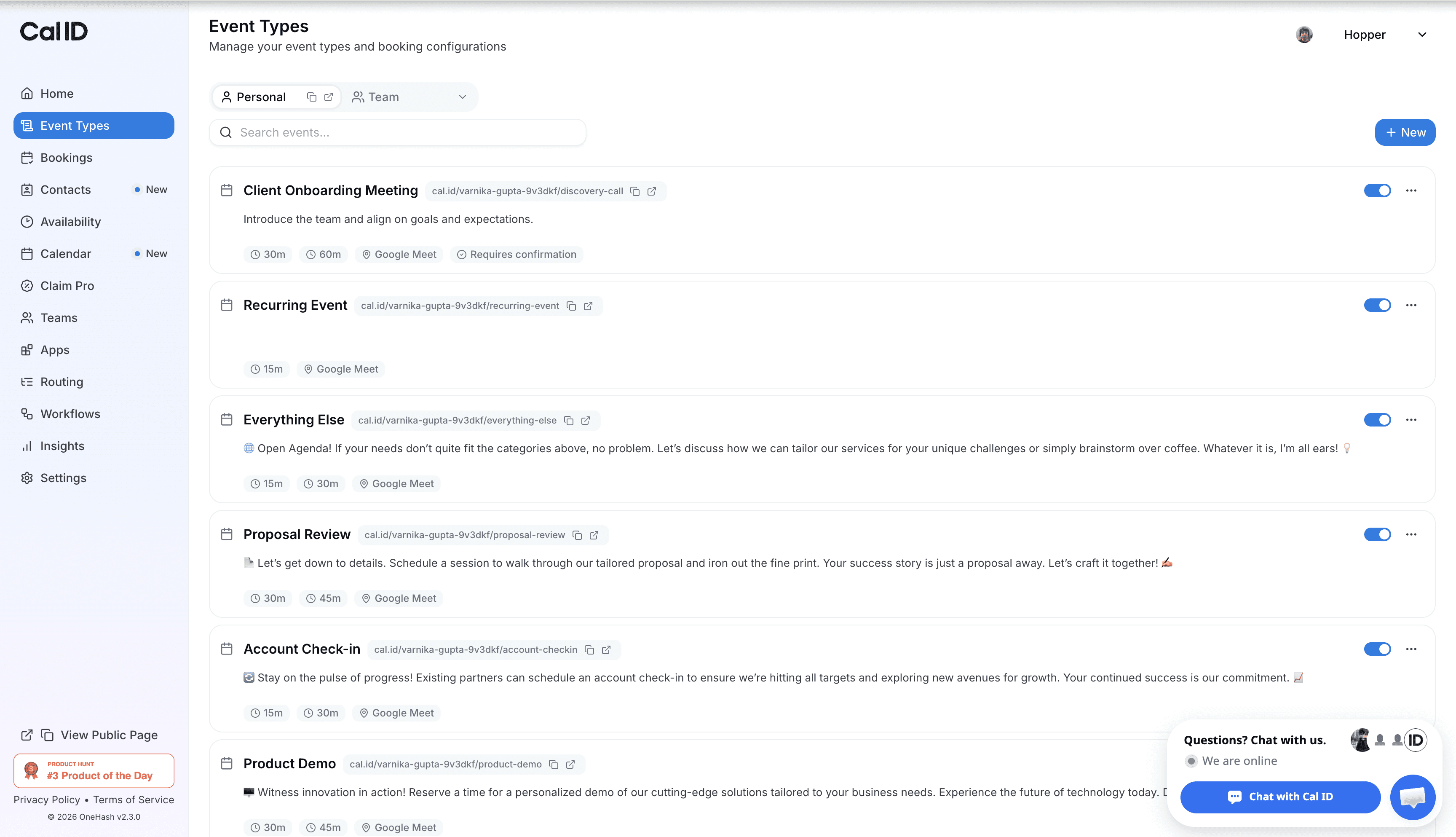
2. Edit Your Event
Find the event you want to make recurring → Click the Edit (pencil) icon to open the event settings.
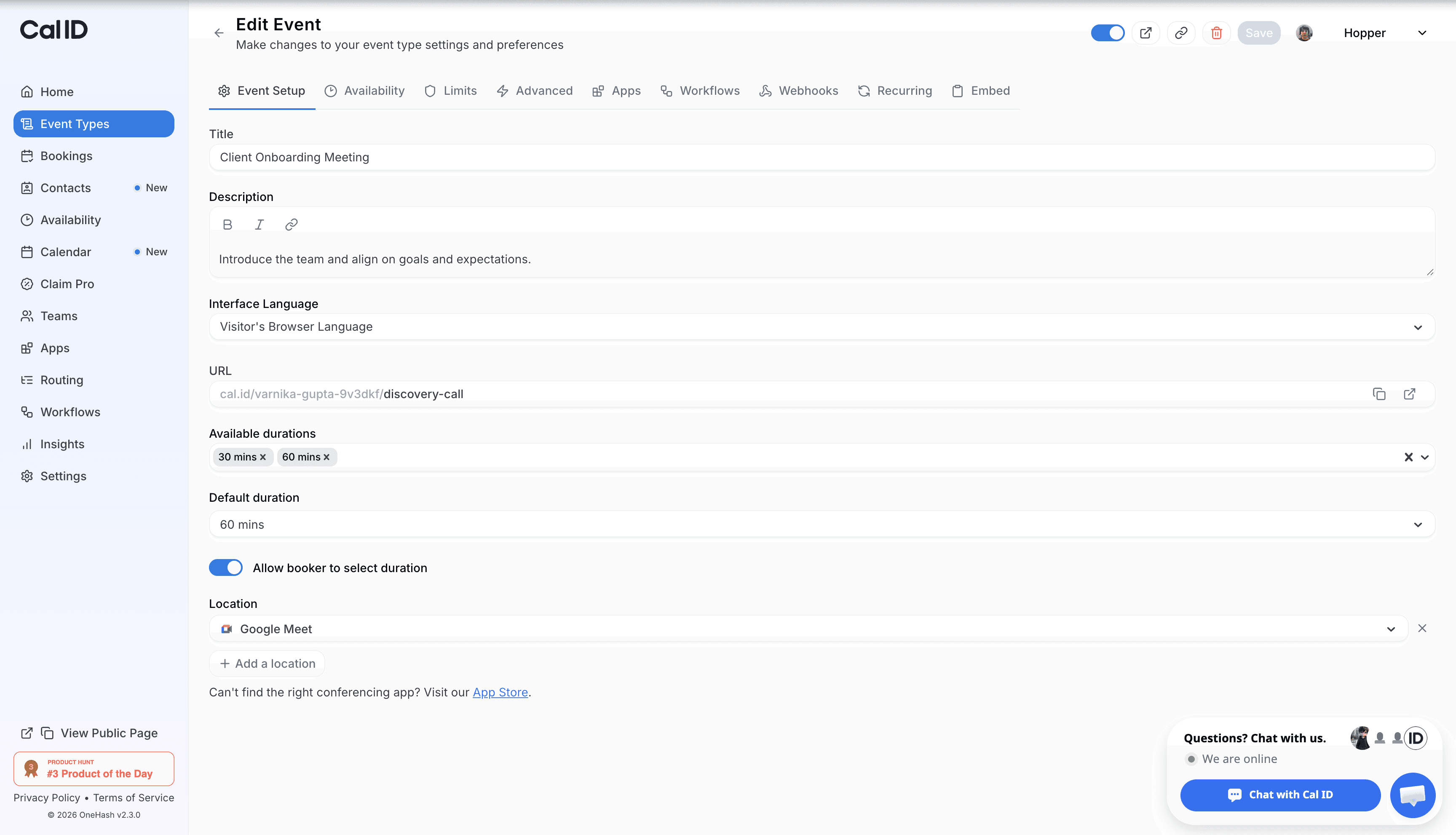
3. Open the Recurring Settings
In the event editor, click on the Recurring tab from the top settings menu.
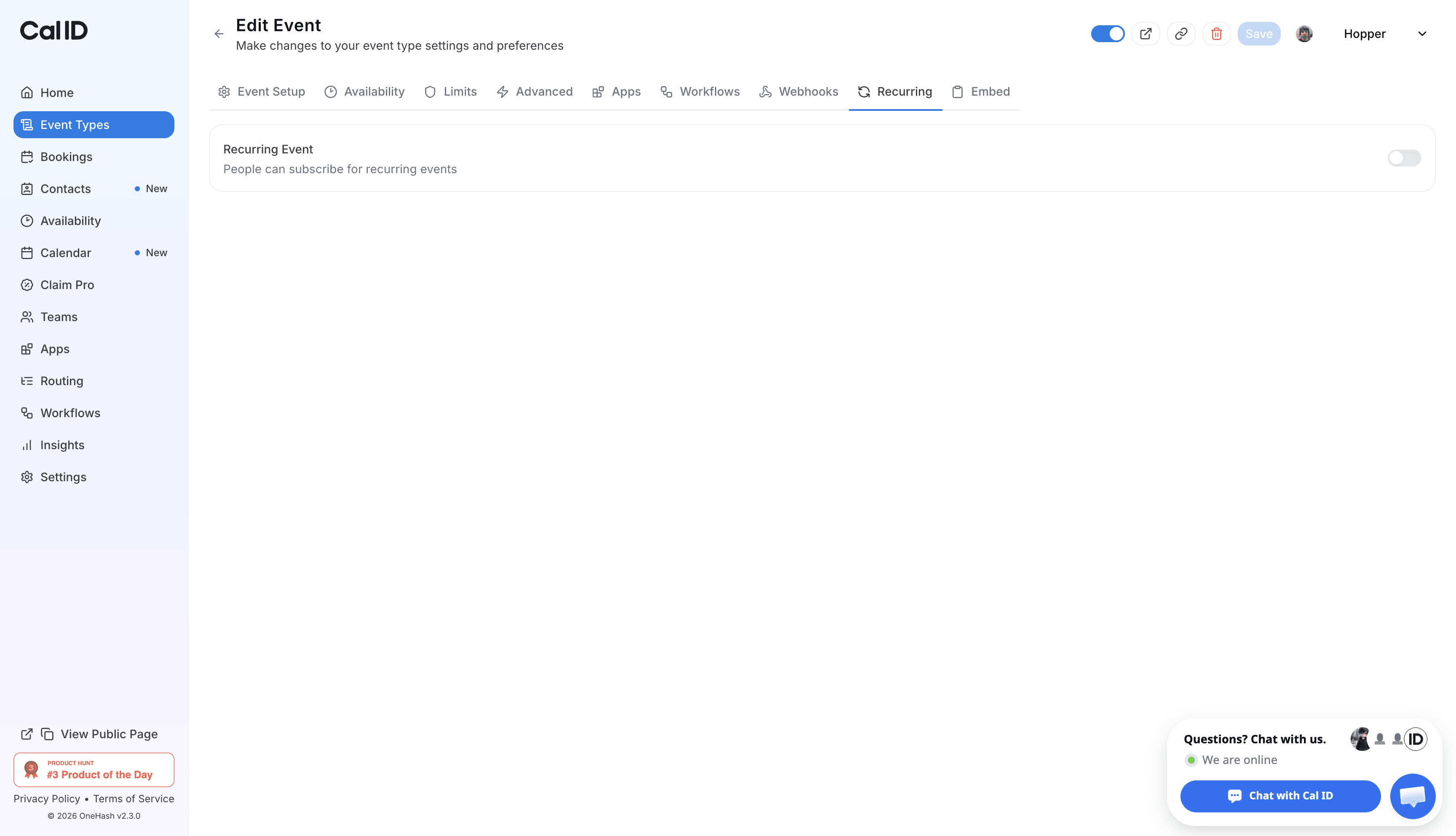
4. Enable Recurring Events
Turn on the Recurring Event toggle to allow the event to repeat automatically based on your preferred schedule.
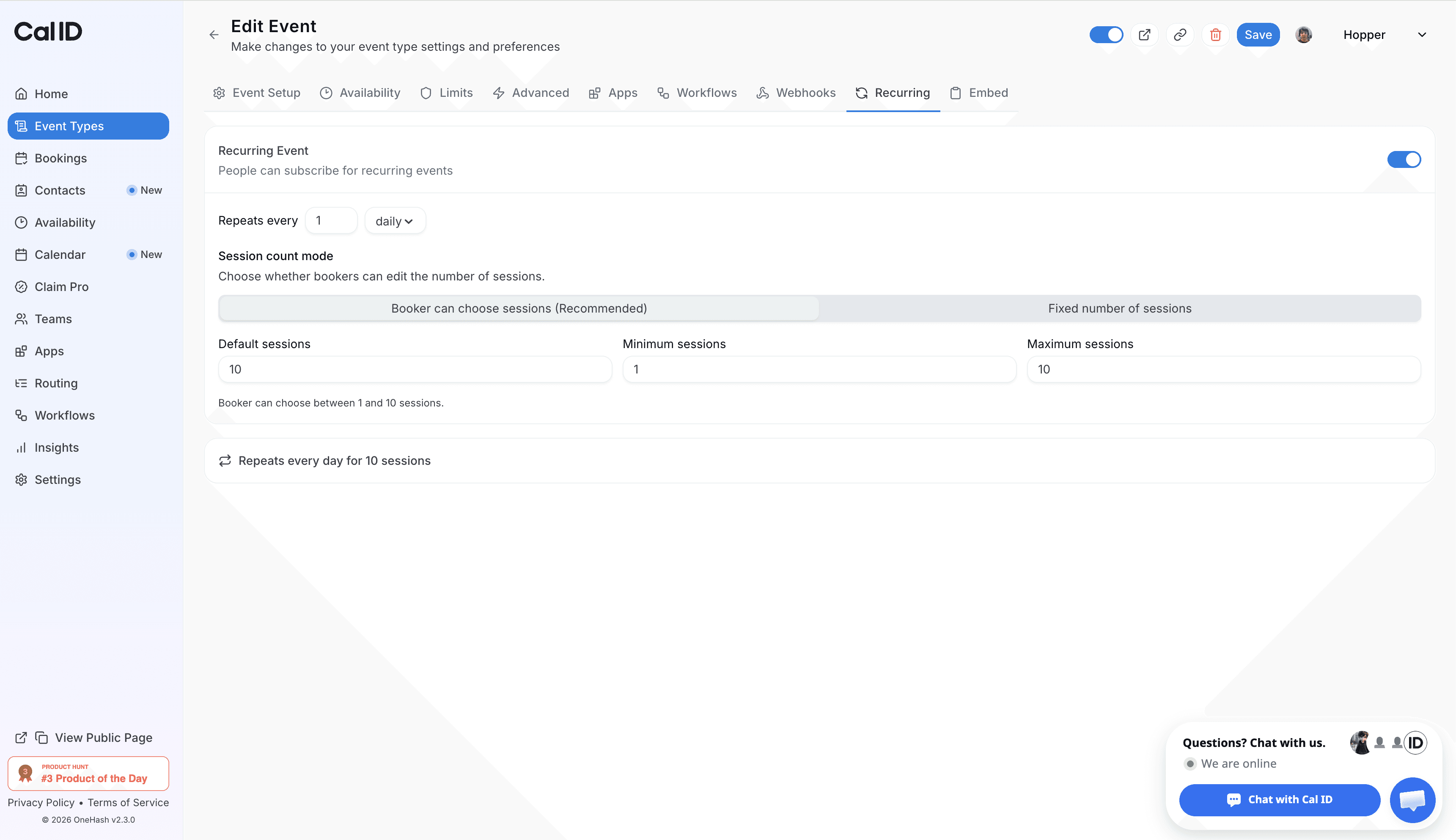
5. Set the Recurrence Frequency
Enter a number in Repeats every and choose the interval (Daily, Weekly, Monthly, or Yearly).
Example: Setting Repeats every 1 week will make the appointment recur every seven days.
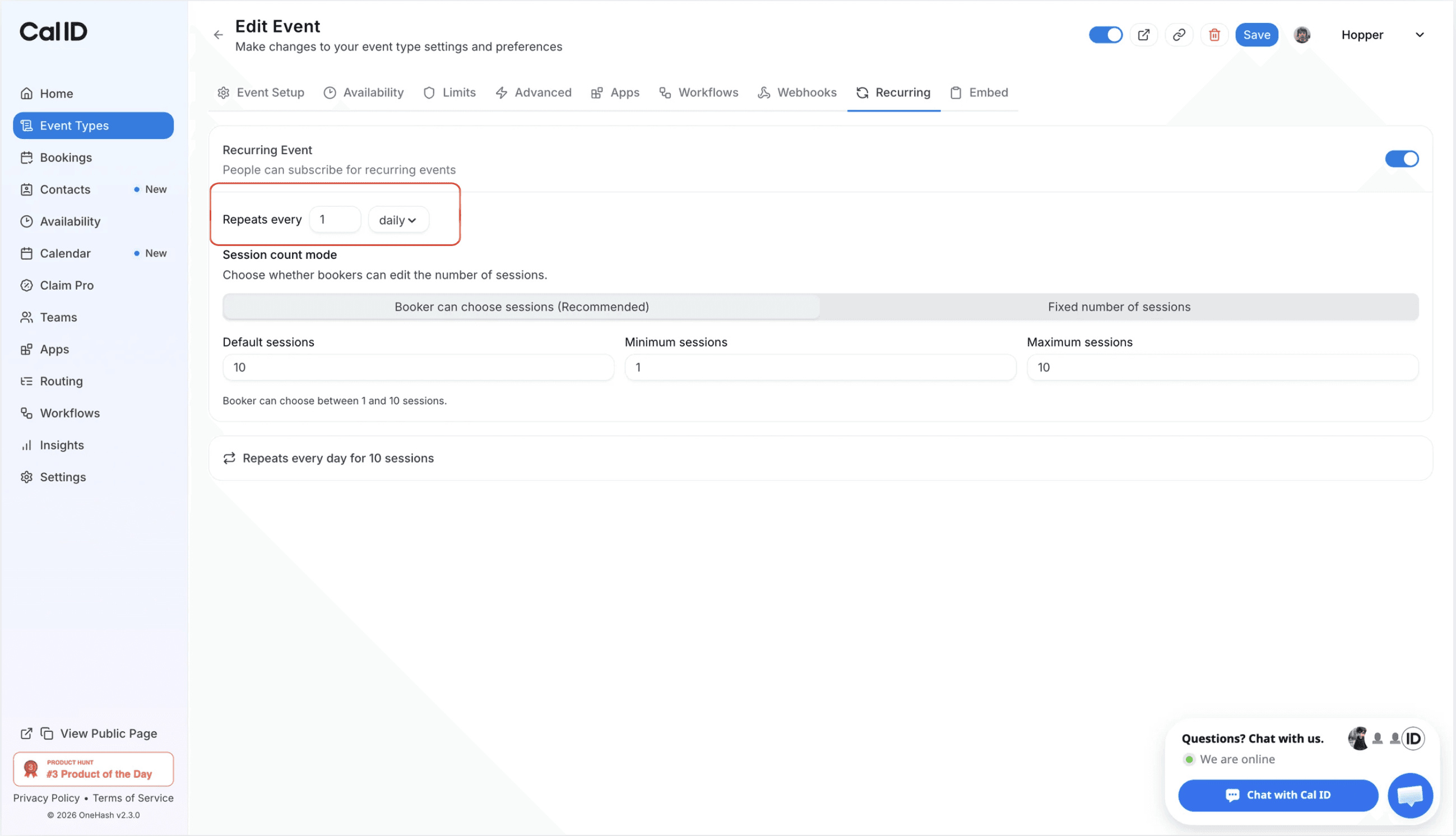
Note: Choose a recurrence pattern that matches your schedule and availability. Any changes you make to the recurring settings will apply to future bookings.













Related Post

on
Aug 18, 2025
Cal ID lets you accept booking payments through Razorpay. Learn how to integrate Razorpay with Cal ID to automate payment collection, manage scheduling, and get paid before every meeting.